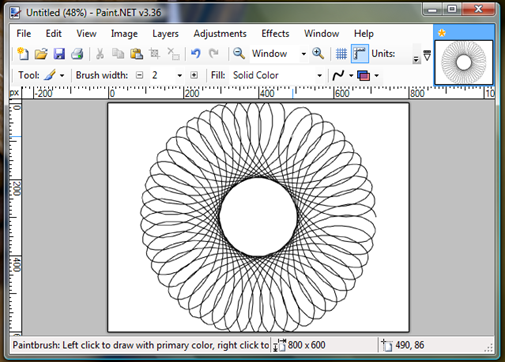
A few weeks ago, I unearthed a hidden gem in the .Net framework: the UIAutomation API. UI Automation made its entrance as part of .Net 3.0, but was overshadowed by the trio of W*Fs – if they’d named it Windows Automation Foundation it might have received more love! UIAutomation provides a robust way of poking, prodding and perusing any widget shown on the Windows desktop; it even works with Silverlight. It can be used for many things, like building Screen Readers, writing automated UI tests – or for creating a digital spirit to spook your colleagues by possessing Paint.Net and sketching spirographs.
The UI Automation framework reduces the entire contents of the Windows Desktop to a tree of AutomationElement objects. Every widget of any significance, from Windows, to Menu Items, to Text Boxes is represented in the tree. The root of this tree is the Desktop window. You get hold of it, logically enough, using the static AutomationElement.RootElement property. From there you can traverse your way down the tree to just about any element on screen using two suggestively named methods on AutomationElement, FindAll and FindFirst.
Each of these two methods takes a Condition instance as a parameter, and it uses this to pick out the elements you’re looking for. The most useful kind of condition is a PropertyCondition. AutomationElements each have a number of properties like Name, Class, AutomationId, ProcessId, etc, exposing their intimate details to the world; these are what you use in the PropertyCondition to distinguish an element from its siblings when you’re hunting for it using one of the Find methods.
Finding Elements to automate
Let me show you an example. We want to automate Paint.Net, so first we fire up an instance of the Paint.Net process:
private string PaintDotNetPath = @"C:\Program Files\Paint.NET\PaintDotNet.exe";
...
var processStartInfo = new ProcessStartInfo(paintDotNetPath);
var process = Process.Start(processStartInfo);
Having started it up, we wait for it to initialize (the Delay method simply calls Thread.Sleep with the appropriate timespan):
process.WaitForInputIdle();
Delay(4000);
At this point, Paint.Net is up on screen, waiting for us to start doodling. This is where the UIAutomation bit begins. We need to get hold of Paint.Net’s main Window. Since we know the Process Id of Paint.Net, we’ll use a PropertyCondition bound to the ProcessId property:
var mainWindow = AutomationElement.RootElement.FindChildByProcessId(process.Id);
You won’t find the FindChildByProcessId method on the AutomationElement class: it’s an extension method I’ve created to wrap the call to FindFirst:
public static class AutomationExtensions
{
public static AutomationElement FindChildByProcessId(this AutomationElement element, int processId)
{
var result = element.FindChildByCondition(
new PropertyCondition(AutomationElement.ProcessIdProperty, processId));
return result;
}
public static AutomationElement FindChildByCondition(this AutomationElement element, Condition condition)
{
var result = element.FindFirst(
TreeScope.Children,
condition);
return result;
}
}
Having found the main screen, we need to dig into it to find the actual drawing canvas element. This is were we need UISpy (which comes as part of the Windows SDK). UISpy lays bare the automation tree of the desktop and the applications on it. You can use it to snoop at the properties of any AutomationElement on screen, and to make snooping a snap, it has a particularly helpful mode where you can Ctrl-Click an element on screen to locate the corresponding AutomationElement in the automation tree (click the mouse icon on the UISpy toolbar to activate this mode). Using these special powers it doesn’t take long to discover that the drawing canvas is an element with AutomationId property set to “surfaceBox”, and is a child of another element, with AutomationId set to “panel”, which in turn is a child of another element with [snip - I’ll spare you the details], which is a child of the Paint.Net main window.
To assist in navigating this kind of hierarchy (a task you have to do all the time when automating any non-trivial application), I’ve cooked up the FindDescendentByIdPath extension method (the implementation of which is a whole other blog post). With that, finding the drawing canvas element is as simple as:
// find the Paint.Net drawing Canvas
 var canvas = mainWindow.FindDescendentByIdPath(new[] {
     "appWorkspace",
       "workspacePanel",
         "DocumentView",
           "panel",
             "surfaceBox" });
Animating the Mouse
Now for the fun part. Do you remember Spirographs? They are mathematical toys for drawing pretty geometrical pictures. But have you ever tried drawing one freehand? Well here’s your chance to convince your friends that you have artistic talents surpassing Michelangelo’s.
Jürgen Köller has very kindly written up the mathematical equations that produce these pretty pictures, and I’ve translated them into a C# iterator that produces a sequence of points along the spirograph curve (don’t worry too much about littleR, bigR, etc. – they’re the parameters that govern the shape of the spirograph):
private IEnumerable<Point> GetPointsForSpirograph(int centerX, int centerY, double littleR, double bigR, double a, int tStart, int tEnd)
{
   // Equations from http://www.mathematische-basteleien.de/spirographs.htm
   for (double t = tStart; t < tEnd; t+= 0.1)
   {
       var rDifference = bigR - littleR;
       var rRatio = littleR / bigR;
       var x = (rDifference * Math.Cos(rRatio * t) + a * Math.Cos((1 - rRatio) * t)) * 25;
       var y = (rDifference * Math.Sin(rRatio * t) - a * Math.Sin((1 - rRatio) * t)) * 25;

       yield return new Point(centerX + (int)x, centerY + (int)y);
   }
}
So where are we? We have the Paint.Net canvas open on screen, and we have a set of points that we want to render. Conveniently for us, the default tool in Paint.Net is the brush tool. So to sketch out the spirograph, we just need to automate the mouse to move over the canvas, press the left button, move from point to point, and release the left button. As far as I know there’s no functionality built into the UIAutomation API to automate the mouse, but the WPF TestAPI (free to download from CodePlex) compensates for that. In its static Mouse class it provides Up, Down, and MoveTo methods that do all we need.
private void DrawSpirographWaveOnCanvas(AutomationElement canvasElement)
{
   var bounds = canvasElement.Current.BoundingRectangle;

   var centerX = (int)(bounds.X + bounds.Width /2);
   int centerY = (int)(bounds.Y + bounds.Height / 2);

   var points = GetPointsForSpirograph(centerX, centerY, 1.02, 5, 2, 0, 300);

   Mouse.MoveTo(points.First());
   Mouse.Down(MouseButton.Left);

   AnimateMouseThroughPoints(points);

   Mouse.Up(MouseButton.Left);
}

private void AnimateMouseThroughPoints(IEnumerable<Point> points)
{
   foreach (var point in points)
   {
       Mouse.MoveTo(point);
       Delay(5);
   }
}
Clicking Buttons
Once sufficient time has elapsed for your colleagues to admire the drawing, the last thing our automation script needs to do is tidy away – close down Paint.Net, in other words. This allows me to demonstrate another aspect of UIAutomation – how to manipulate elements on screen other than by simulating mouse moves and clicks.
Shutting down Paint.Net when there is an unsaved document requires two steps: clicking the Close button, and then clicking “Don’t Save” in the confirmation dialog box. As before, we use UISpy to discover the Automation Id of the Close button and its parents so that we can get a reference to the appropriate AutomationElement:
var closeButton = mainWindow.FindDescendentByIdPath(new[] {"TitleBar", "Close"});
Now that we have the button, we can get hold of its Invoke pattern. Depending on what kind of widget it represents, every AutomationElement makes available certain Patterns. These Patterns cover the kinds of interaction that are possible with that widget. So,for example, buttons (and button-like things such as hyperlinks) support the Invoke pattern with a method for Invoking the action, list items support the SelectionItem pattern with methods for selecting the item, or adding it to the selection, and Text Boxes support the Text pattern with methods for selecting a range of text and querying its attributes. On MSDN, you’ll find a full list of the available patterns.
To invoke the methods of a pattern on a particular AutomationElement, you need to get hold of a reference to the pattern implementation on the element. First you find the appropriate pattern meta-data. For the Invoke pattern, for example, this would be InvokePattern.Pattern; other patterns follow the same convention. Then you pass that meta-data to the GetCurrentPattern method on the AutomationElement class. When you’ve got a reference to the pattern implementation, you can go ahead an invoke the relevant methods.
Once again, I’ve made all this a bit easier by creating some extension methods (only the InvokePattern is shown here; extension methods for other patterns are available in the sample code):
public static class PatternExtensions
{
   public static InvokePattern GetInvokePattern(this AutomationElement element)
   {
       return element.GetPattern<InvokePattern>(InvokePattern.Pattern);
   }

   public static T GetPattern<T>(this AutomationElement element, AutomationPattern pattern) where T : class
   {
       var patternObject = element.GetCurrentPattern(pattern);

       return patternObject as T;
   }
}
With that I can now click the close button:
closeButton.GetInvokePattern().Invoke();
Then, after a short delay to allow the confirmation dialog to show up, I can click the Don’t Save button:
// give chance for the close dialog to show
Delay();

var dontSaveButton = mainWindow.FindDescendentByNamePath(new[] {"Unsaved Changes", "Don't Save"});

Mouse.MoveTo(dontSaveButton.GetClickablePoint().ToDrawingPoint());
Mouse.Click(MouseButton.Left);
For variation, I click this button by actually moving the mouse to its centre (line 6) then performing the click.
All the code is available on GitHub.
Bowing out
When I first read about UI Automation, I got the impression that it was rather complicated, with lots of code needed to make it do anything useful. I tried using Project White (a Thoughtworks sponsored wrapper around UIAutomation), thinking that would save me from the devilish details. It turned out the Project White introduced complexities of its own, and actually, UI Automation is pretty straightforward to use, especially when oiled with my extension methods. I’ve had a lot of fun using it to create automated tests of our product over the last couple of months.
Update
16/7/2014: following the demise of code.mdsn.microsoft.com, I’ve moved the code to GitHub. I’ve also updated it so that it works with Paint.Net 4.0